

Prerequisites
Facets are derived from the attributes defined in your product feed. This includes both standard and custom fields. Ensure your feed includes all relevant data you want to expose as facets. Refer to the Admin API and catalog import documentation for detailed steps on importing and formatting your product feed.Facet Configurator access
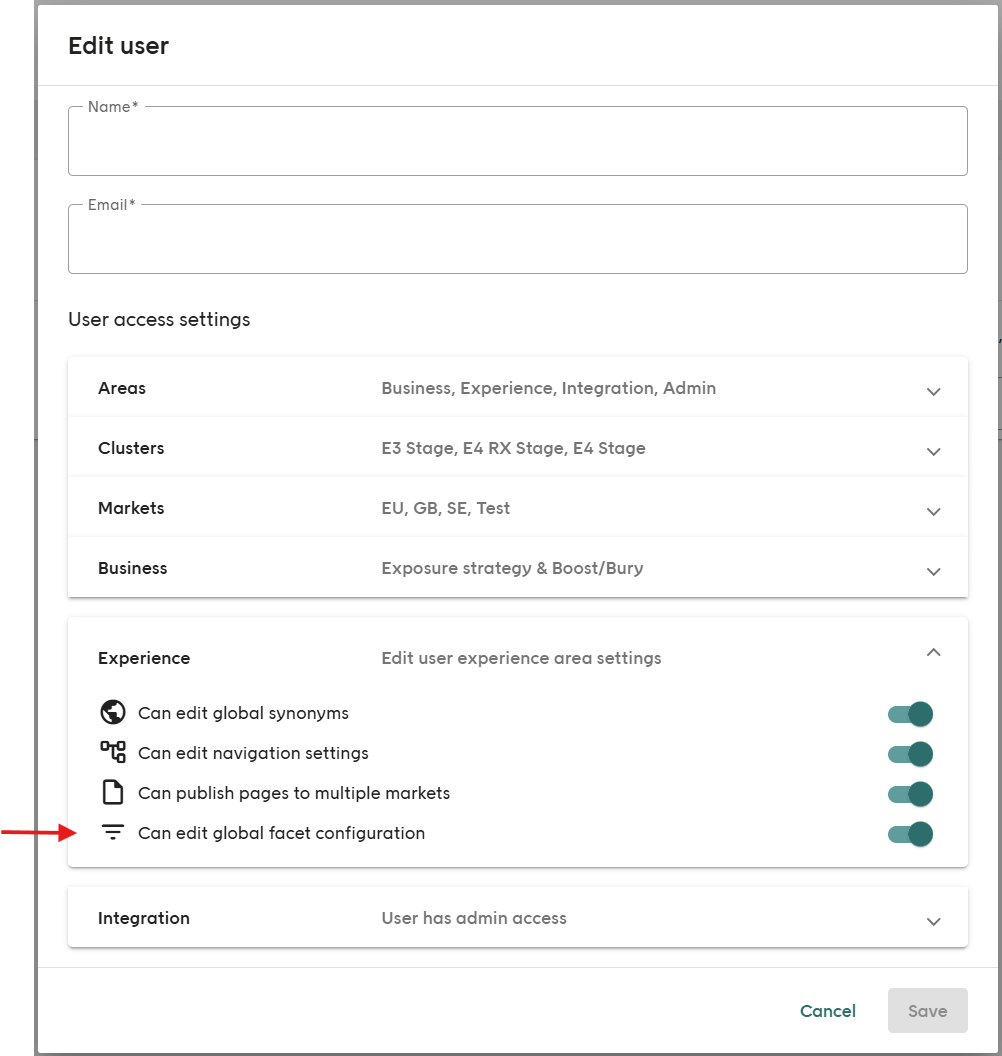
All facet configurations are edited in the Elevate app. All users can access the Facet Configurator to view existing settings. However, only users with the correct permissions can make edits in the view. To enable editing rights for a user in the application:1
Select the user
Go to the Admin tab and select the desired user.
2
Open the Experience section
In the user profile, navigate to the Experience section.
3
Enable the permission
Enable the Can edit global facet configuration permission.
4
Save the changes
Click Save to confirm changes.
5
Refresh the application
Refresh the application for the updated permission to take effect.
Facet workflow overview
A typical facet configuration in Elevate follows a layered and centralized approach: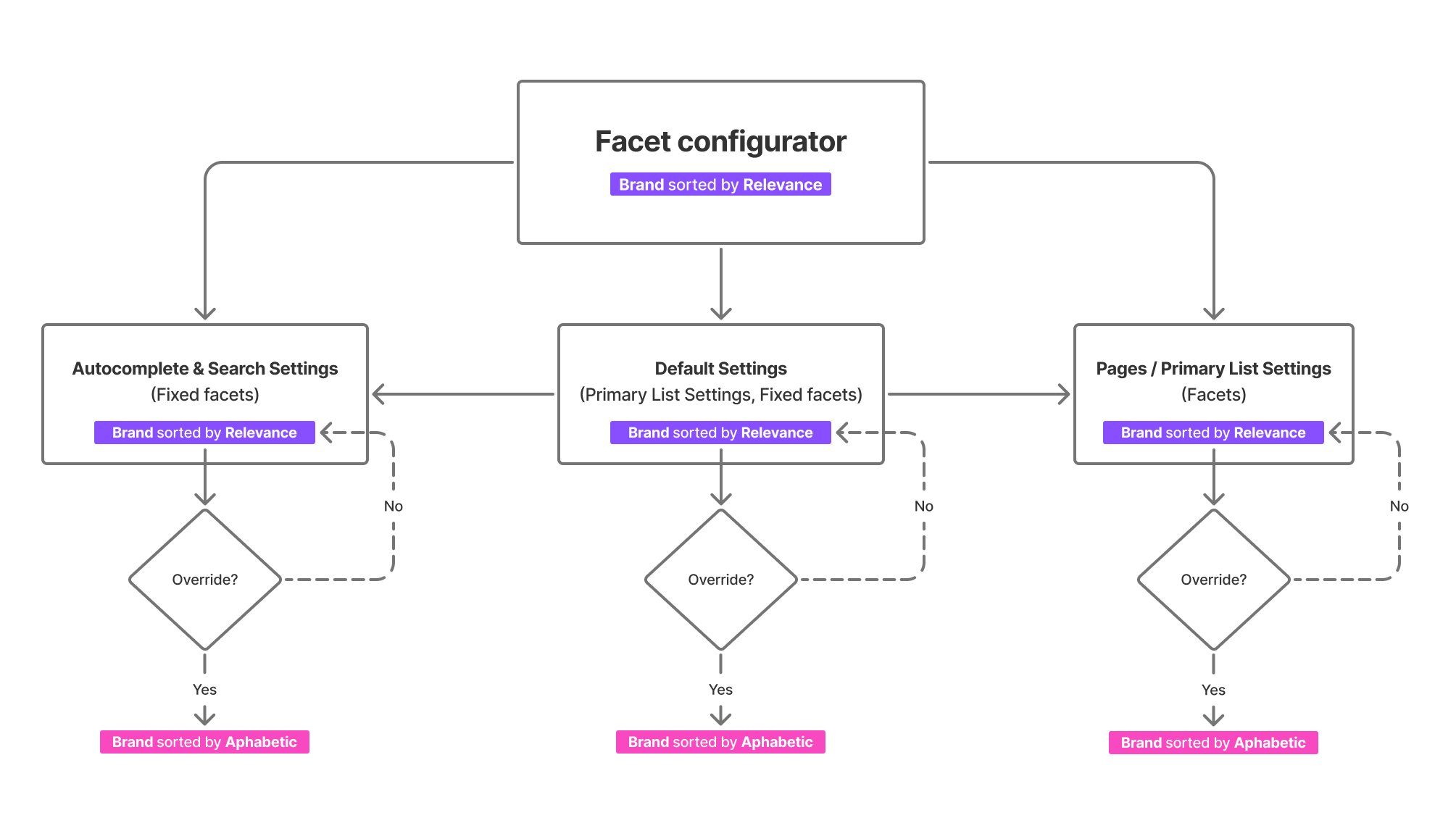
1
Facet Configurator
Defines all available facets across all markets and sets default properties such as display type, sort order, and units.
2
Default Settings
These are market-specific and apply to all pages with a primary product list and the search results page, forming the base configuration.
3
Pages
All pages — whether individual pages with primary lists or the search results page — will use the Default Settings by default.
4
Overrides
Overrides can be separately applied to:
- Individual Pages with Primary Lists
- Autocomplete & Search Settings
Facet Configurator
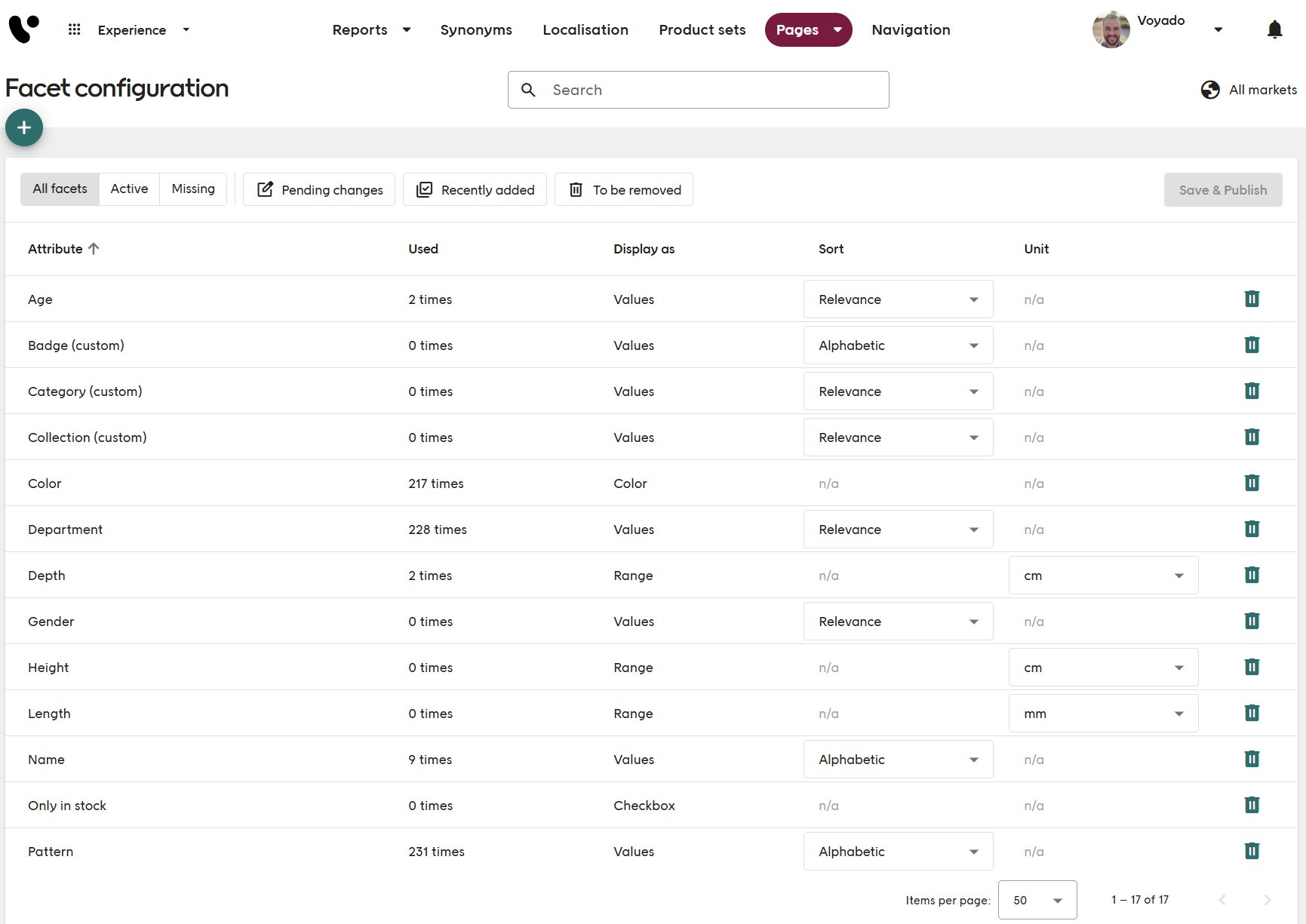
Location: Experience → Pages → Settings → Facet Settings Access: See the Facet Configurator access section above. This is the source of truth for facet definitions across the application.You can override settings for specific product areas as needed, without impacting the facets configured in the Facet Configurator.
Behavior
- Save & Publish applies changes to all markets.
- Modifications (for example, display type, sort, unit) update all non-overridden instances.
- Removing a facet deletes it from the entire application. This action will impact:
- Default Settings
- Individual Pages with Primary Lists
- Autocomplete & Search Settings
- Adding a facet makes it available across the entire application.
Understanding facet usage
The Used column shows how many times a facet is currently configured across the system. This includes:- Default settings
- Autocomplete & Search Settings
- Individual pages with overrides
Facet availability
Facet availability is determined by the attributes present in your product feed. If a facet is marked as Missing, it means the corresponding attribute was previously configured but is no longer available in the current feed. Should the attribute reappear, the facet will automatically return to an Active state within the Facet Configurator. Missing facets can be deleted if they are no longer needed. Make sure to add and configure only relevant attributes that merchandisers are likely to use as facets when working with Pages, Slices, and other features.Facet types and properties
For full configuration options, refer to the catalog import schema documentation.Facet usage contexts
Default Settings
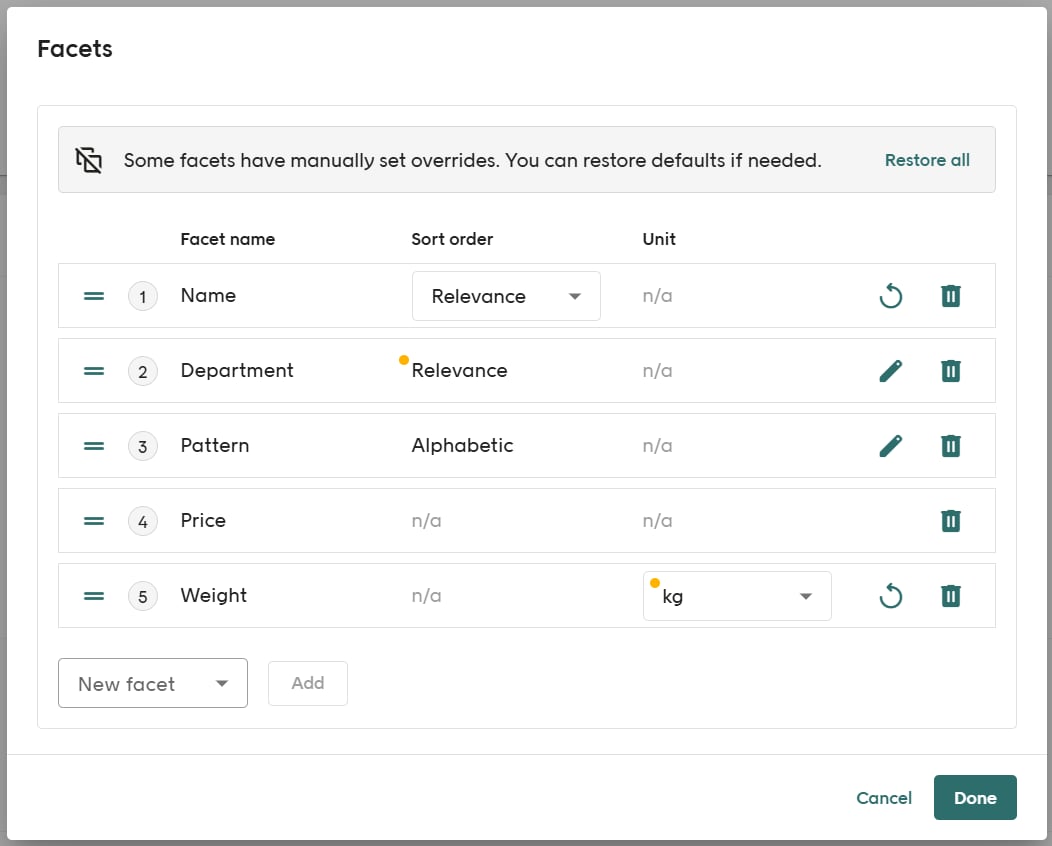
Location: Experience → Pages → Settings → Default Settings → Primary product list → Facets Defines default facets used across all primary list pages and the search result page — unless specifically overridden.Autocomplete & Search
Location: Experience → Pages → Settings → Autocomplete & Search → Search Result Page → Override Facets Overrides default facets for search results only. Use to provide more relevant filters based on user intent.Per page primary list
Location: Experience → Pages → Category & Landing pages → [Page] → Primary List Settings → Override Facets Provides fine-grained control by overriding facets for individual pages.Making facets visible on-site
Facets will only appear on the frontend after proper configuration:- Add the facet in the Facet Configurator
- Include it in either Default Settings or page-specific overrides
- Confirm inclusion in the Storefront API response
- Render facets using frontend code based on API data
Integration with Storefront API
The Storefront API holds facet data and supports filtering through query parameters. Shopper-selected facets must be passed in all subsequent requests. The query parameter formats are:Boolean, Value, Color & Size Facets
Range/Measurement Facets
Range/Measurement Facets
You can set either a minimum value, a maximum value, or both.
Preview & testing
Use the preview feature in Elevate to validate facet functionality with real product data before launching live.Example: setting up facets for an electronics site
This example demonstrates how to set up product facets in Elevate for an electronics store — from importing product data to configuring and integrating facets.Step 1: create a product feed
Import a feed that includes all relevant attributes for filtering.Example product feed
Step 2: configure facets
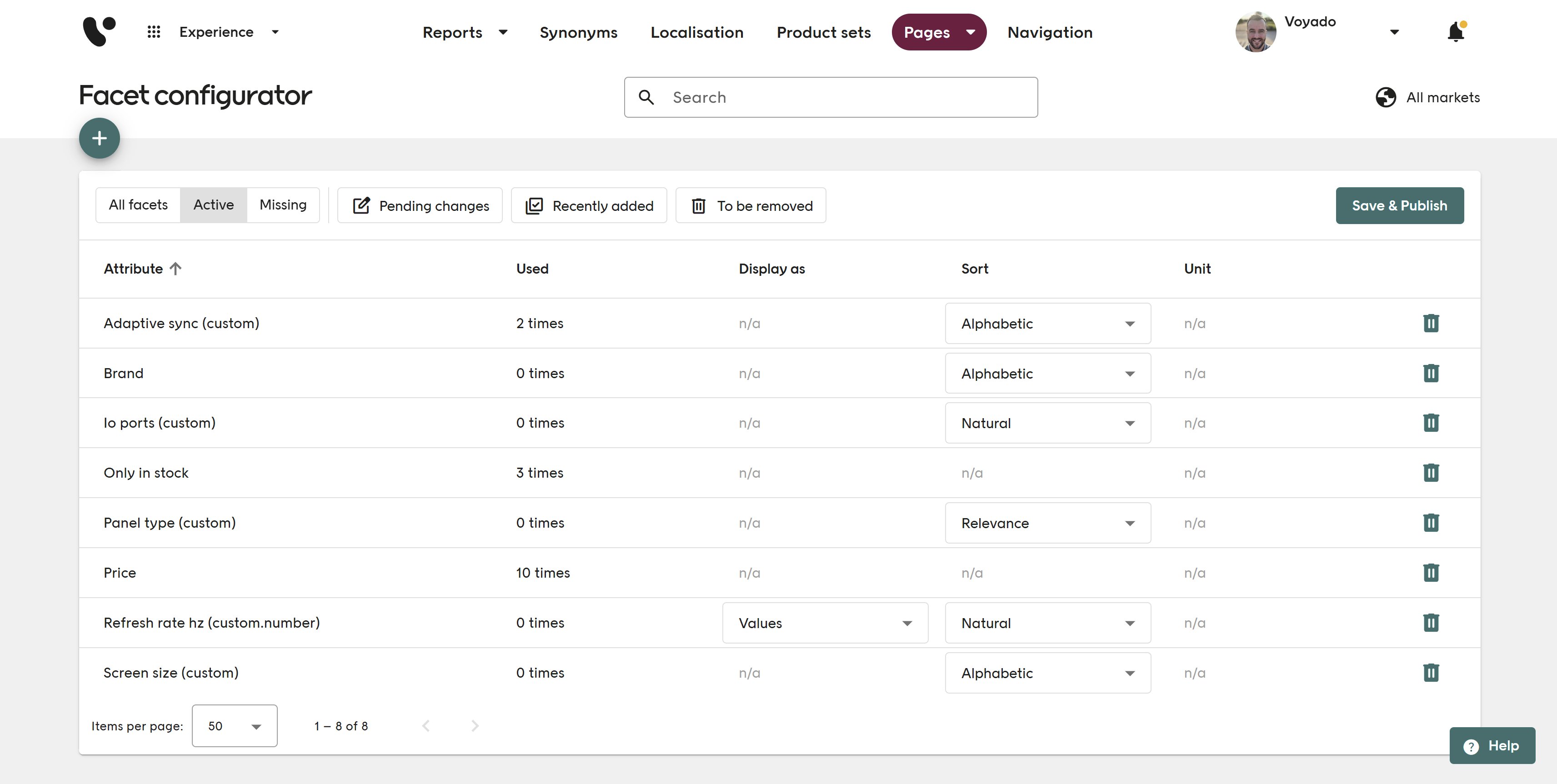
In the Experience app, set up the following attributes as facets:- in_stock — Becomes a checkbox automatically.
- price — Auto-configured as a range slider.
- refresh_rate_hz — Custom numeric; configure as a range slider.
- brand — Use Alphabetic sort.
- screen_size, panel_type, adaptive_sync, io_ports — Use Natural or Relevance sort.
Step 3: site integration
Facets are returned by the Storefront API in a consistent format for both landing and search pages.Example response
Querying with facets
Include selected facets in query parameters: Value/BooleanExample response