> ## Documentation Index
> Fetch the complete documentation index at: https://product-discovery.developer.voyado.com/llms.txt
> Use this file to discover all available pages before exploring further.
# Image tags
> Use image tags to control image selection and prioritization in Voyado Elevate.
Custom image tags can be added to product images to gain more nuanced control over how to showcase those products, beyond just having model and cutout images. Any kind of tag can be added to an image, or a set of images, and be used to prioritize the image selection.
Add available tags to images using the `tags` attribute. For more information, see the [catalog specification](/elevate/docs/integration/catalog-imports/format-overview#images).
```json icon="code" theme={null}
{
"image_1": {
"defaults": {
"tags": [ "Hero" ],
"urls": [ { "url": "//cdn.example.com/images/1001-100_model.jpg?preset=200x200"}]
}
}
}
```
Image tags can not be used for [content images](/elevate/docs/integration/catalog-imports/import-examples#adding-content).
## Image tag prioritization
In the [Default settings section](https://help.elevate.voyado.com/hc/en-gb/articles/27611266063132-Settings#default-settings) of the [Settings tab](https://help.elevate.voyado.com/hc/en-gb/articles/27611079263004-Working-with-image-tags-image-types-and-image-order#how-to-prioritize-images-in-the-experience-app) in the Experience app, you can set the desired image prioritization order with the imported tags. It is possible to override the default image prioritization order for individual product lists on a specific page, see [List settings](https://help.elevate.voyado.com/hc/en-gb/articles/27611164840092-Category-Landing-pages) .
Only tags that are currently available in the catalog can be selected. If a tag is removed from the catalog, it will also be removed from the app.
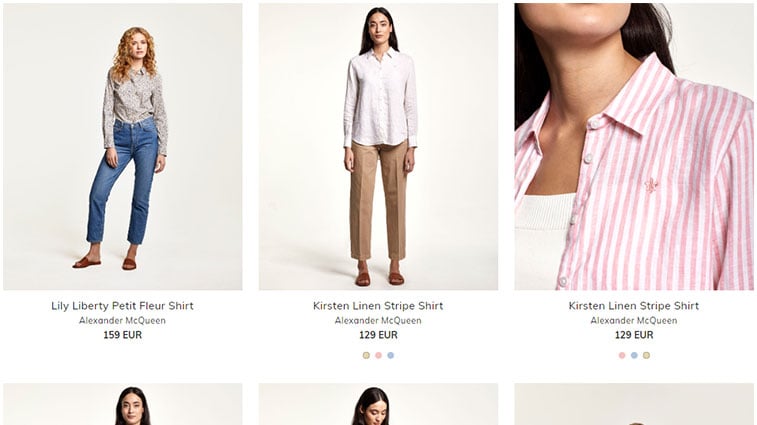
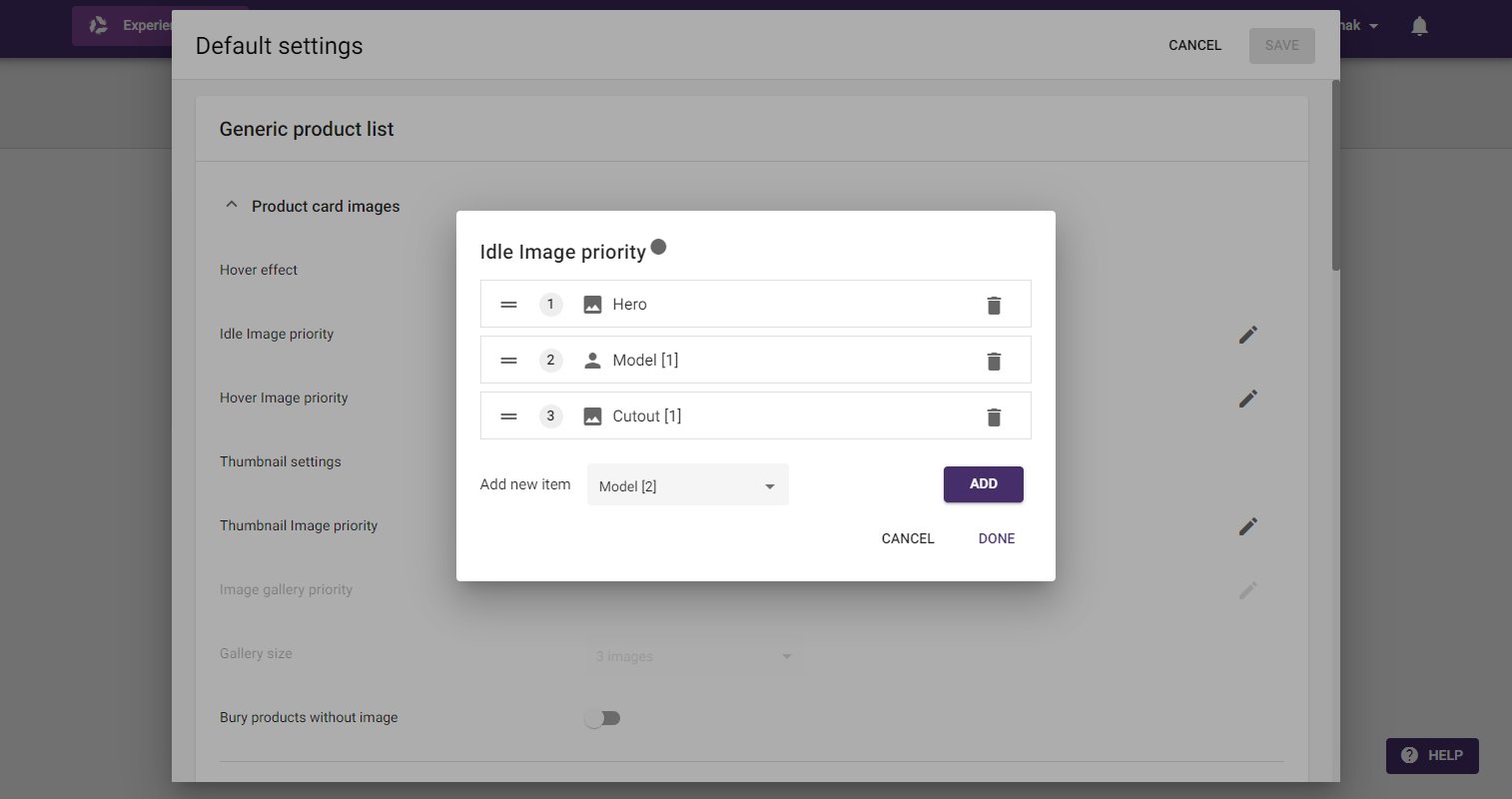 In the example below, the third product has an image that has received the tag `Hero`, which is then set as the first prioritized image. Only the images with that same tag will show that image type, while the other images will rely on the next prioritized type.